
Toyota RAV4: Vehicle status information and indicators - Multi-information display (with 12.3-inch multi-information display)
Display contents Toyota RAV4 (XA50)
The multi-information display presents driving data, vehicle status details, assistance information, settings, and warning messages across several configurable areas, giving the Toyota RAV4 driver a clear overview of important information.
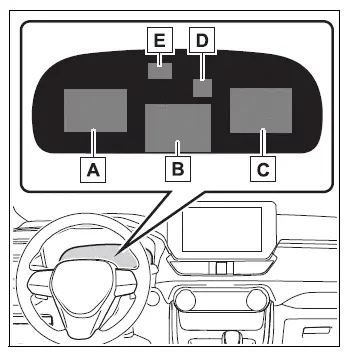
- Content display area (left)
- Content display area (center)
- Content display area (right)
- Driving support system information display area
Shows the operating status of supported driver assistance functions. When driving support system information is already presented in one of the main content display areas, the same operating status will not be duplicated in this area. - RSA (Road Sign Assist) display area (if equipped)
Shows road sign information recognized by the Road Sign Assist system.
■ Content display area (center)
- Driving support system information display
- Settings display
- Warning message display
- Blank (No items)
■ Content display area (left/right)
- Fuel Economy
- Eco Driving Indicator
- Driving support system information display
- Navigation system-linked information display (if equipped)
- Audio system-linked display
- Drive information
- AWD operation status display (if equipped)
- Blank (No items)
■ The multi-information display is displayed when
The multi-information display operates when the engine switch is in ON, making current Toyota RAV4 information and available screen functions accessible to the driver.
■ When changing driving mode
The background color of the multi-information display changes to correspond with the selected driving mode, providing a visual indication of the active vehicle setting.
■ Liquid crystal display
Small dark or bright spots may occasionally appear on the screen. This is a normal characteristic of liquid crystal display technology and does not indicate a malfunction or prevent continued use of the display.
WARNING
■ Caution for use while driving
- When operating the multi-information display while driving, remain fully aware of traffic, pedestrians, road conditions, and objects around the vehicle.
- Do not look continuously at the multi-information display while the Toyota RAV4 is moving. Extended attention to the screen may prevent you from noticing pedestrians, obstacles, or other hazards ahead.
Meter control switches Toyota RAV4 2026
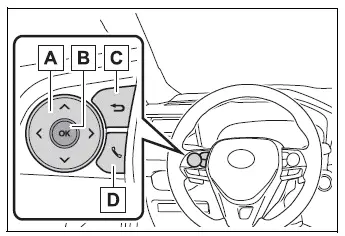
 : Change the screen and move the cursor between available areas or menu selections.
 : Change the displayed content and scroll upward or downward through the screen.
- Press: Enter or confirm the selected setting
Press and hold: Reset the selected value, show customizable items, or display the cursor - Move the main meter and return to the previous screen
- Display outgoing calls, incoming calls, and call history
When linked with the hands-free system, information related to sending or receiving a call appears on the multi-information display.
For further information about hands-free system operation, refer to the "MULTIMEDIA OWNER'S MANUAL".
Changing the display
The multi-information display is operated with the meter control switches, which allow the driver to move between screens, select content, and adjust supported display settings.
■ Changing the meter display type setting
The meter display type can be changed through  , allowing the preferred instrument layout to be selected.
■ Changing the screen
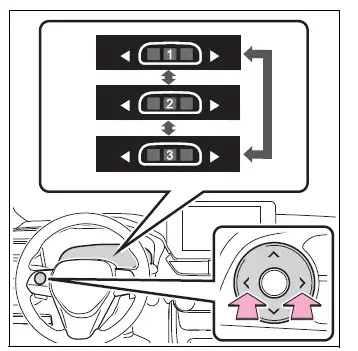
Select a combination of three screens to determine what information appears in each of the three content display areas.
Press  or
or  on the meter control switches to scroll between the registered screen combinations.
■ Changing the display contents
Use the following procedure to change the item shown in each content display area on the left, center, or right side of the screen.
1. Press and hold  until the cursor appears in the center content display area.
2. Press  or
or  to move the cursor and choose the content display area you want to modify.
3. Press  or
or  to select the desired information item for that area.
■ Items displayed in the content display area
Individual items available for the left and right content display areas can be enabled or disabled, allowing the Toyota RAV4 instrument screen to be organized around the driver's preferred information.
1. Press and hold  until the cursor appears in the center content display area.
2. Press  or
or  to move the cursor and select the content display area to be configured.
3. Content display area (left): Press  to open the list of available content.
Content display area (right): Press  to open the list of available content.
4. Use the meter control switches to move through the list and highlight the item you want to configure.
5. Press  to enable or disable the selected item.
WARNING
■ Caution for use while driving
For safety, avoid operating the meter control switches while driving whenever possible, and do not look continuously at the multi-information display while the vehicle is moving.
Stop the Toyota RAV4 in a safe location before making detailed display selections or adjustments. Attempting to operate the switches while driving may interfere with steering wheel control and could lead to an unexpected accident.
Fuel Economy Toyota RAV4 (XA50)
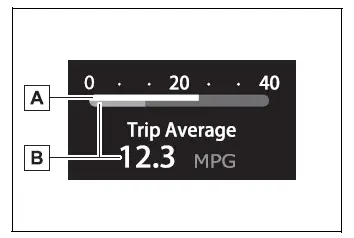
- Current fuel economy
Displays fuel economy information based on the vehicle's present driving conditions, allowing changes in consumption to be monitored as accelerator use, speed, and road conditions vary. - Average fuel economy
Shows the average fuel economy calculated since the function was reset or since the engine was started.*1, 2, 3
The type of average fuel economy selected through "Fuel Economy" on the screen is shown in this area.
*1: Use the displayed fuel consumption value as a general reference only, as actual results may vary according to driving and operating conditions.
*2: Average fuel economy after starting is reset automatically each time the engine is stopped.
*3: Average fuel economy calculated since the function was reset can be cleared by pressing and holding  .
.
Eco Driving Indicator
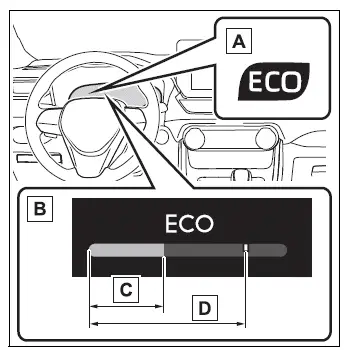
- Eco Driving Indicator Light
The Eco Driving Indicator Light illuminates when acceleration remains within the economical operating range, indicating smoother and more fuel-efficient accelerator use.If acceleration exceeds the Eco driving zone, or when the vehicle is stopped, the light turns off.
- Eco Driving Indicator Zone Display
Shows the suggested Eco driving zone together with the current Eco driving ratio calculated from accelerator operation. - Eco driving ratio based on acceleration
If acceleration moves beyond the Eco driving zone, the right side of the Eco Driving Indicator Zone Display illuminates to indicate that accelerator input has exceeded the suggested economical range.
At the same time, the Eco Driving Indicator Light turns off. - Zone of Eco driving
Provides a visual reference for the range of accelerator operation associated with economical driving.
■ The ECO Driving indicator will not operate when
The Eco Driving Indicator does not operate under any of the following conditions:
- The shift lever is in a position other than D.
- Neither normal mode nor Eco drive mode is selected.
- The Toyota RAV4 is traveling at approximately 80 mph (130 km/h) or faster.
Driving support system information display
Select this display to review the current operating status and related information for the following driving support systems:
- LTA (Lane Tracing Assist)
- Dynamic radar cruise control with full-speed range
Navigation system-linked display (if equipped)
Select this display to view information provided by the connected navigation system directly on the multi-information display.
- Route guidance to the selected destination
- Street name
- Compass
Audio system-linked display
The operating status of the audio system can be shown on the multi-information display, allowing the driver to review relevant audio information without leaving the instrument screen.
Driving information display
■ Drive information
Two items selected through the "Drive Info Items" setting can be arranged vertically on the screen. The available choices include average speed, distance, and total elapsed time, allowing the Toyota RAV4 driver to prioritize the most useful journey information.
Use the displayed values as general references only.
- "Average Speed": Shows the average vehicle speed calculated since the engine was started.*
- "Distance": Shows the total distance traveled since the engine was started.*
- "Total Time": Shows the amount of time that has elapsed since the engine was started.*
*: These values are reset automatically each time the engine is stopped.
■ Trip information
Two items selected through the "TRIP A Items" or "TRIP B Items" setting can be displayed vertically. Average speed, distance, and total elapsed time are available for selection, and each trip display can be used to monitor a separate journey or mileage interval.
Use the displayed information as a general reference only.
- "Average Speed": Shows the average vehicle speed calculated since the selected trip display was reset.*
- "Distance": Shows the distance traveled since the corresponding trip display was reset.*
- "Total Time": Shows the elapsed time recorded since the selected display was reset.*
*: To reset a value, display the desired item and press and hold  .
.
AWD system display (AWD models)
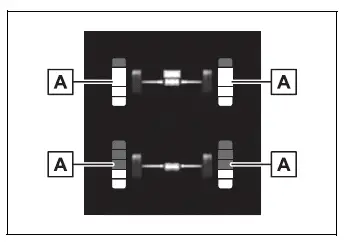
- Torque distribution display
Shows the current drive status of each wheel using 6 indication levels ranging from 0 to 5, providing a visual representation of how driving force is being distributed.
The illustration is provided as an example. The layout, appearance, or details shown on the actual multi-information display may differ according to the vehicle configuration and current operating conditions.
Blank (No items)
Selecting this option leaves the content area blank, with no driving information shown on that section of the multi-information display.
Settings display Toyota RAV4 (XA50)
Vehicle functions and the information shown on the screen can be configured with the meter control switches. These options allow the driver to personalize selected Toyota RAV4 assistance features, warning preferences, and display content.
■ Setting procedure
1. Press and hold  until the cursor appears in the center content display area.
2. With the cursor positioned in the center content area, press  or
or  to select
  , and then press
  to open the settings menu.
3. Press  or
or  to move the cursor through the available options and highlight the item you want to adjust.
When a function can be switched on or off, or a value such as warning volume can be changed directly, each press of  applies the next available setting.
For functions that provide additional operating choices, display preferences, or adjustable values, press and hold  to open the detailed configuration screen. Once the screen appears, use
  to select the desired option or value, such as a time setting.
4. After completing the changes, press  to leave the settings screen and return to the previous display.
■  LTA (Lane Tracing Assist)
Select this menu to configure the following Lane Tracing Assist functions available for the Toyota RAV4.
- "Lane Center"
Select to enable or disable the lane centering function.
- "Sensitivity"
Select to adjust the sensitivity of the lane departure alert according to the available levels.
- "Sway Warning"
Select to enable or disable the vehicle sway warning.
- "Sway Sensitivity"
Select to adjust how sensitively the system responds when vehicle sway is detected.
■  BSM (Blind Spot Monitor) (if equipped)
Select this menu to configure the following Blind Spot Monitor options.
- BSM (Blind Spot Monitor) on/off
- Select to enable or disable the BSM system.
- "Sensitivity"
Select to adjust the alert timing used when the system detects a vehicle approaching from behind in an adjacent lane. - "Brightness"
Select to change the brightness of the BSM indicators located in the outside rear-view mirrors.
■  PCS (Pre-Collision System)
Select this menu to configure the following Pre-Collision System options.
- PCS on/off
Select to enable or disable the pre-collision system. - "Sensitivity"
Select to change the timing of the pre-collision warning from the available settings.
■  (Intuitive parking assist) (if equipped)
Select this menu to configure the following intuitive parking assist options for the Toyota RAV4.
- Intuitive parking assist on/off
Select to enable or disable the intuitive parking assist function. - "Volume"
Select to adjust the volume of the buzzer that sounds while intuitive parking assist is operating.
■  RCTA (Rear Cross Traffic Alert) (if equipped)
Select this menu to configure the available Rear Cross Traffic Alert settings for the Toyota RAV4.
- RCTA (Rear Cross Traffic Alert) on/off
Select to enable or disable the RCTA system. - "Volume"
Select to adjust the volume of the warning buzzer that sounds when the RCTA system detects a relevant condition.
■  PKSB (Parking Support Brake System) (if equipped)
Select to enable or disable the Parking Support Brake function according to the driver's preferred assistance settings.
■  RSA (Road Sign Assist) (if equipped)
Select this menu to configure the following Road Sign Assist options.
- Road Sign Assist on/off
Select to enable or disable the RSA system. - "Notification Method"
Select how the driver is notified when the system recognizes excessive vehicle speed or a Do Not Enter sign. - "Notification Level"
Select the notification level used when the system recognizes a speed limit sign.
■  Vehicle Settings
 PBD (Power Back Door) (if equipped)
Select this menu to configure the following Power Back Door functions.
- System settings
Select to enable or disable the power back door system. - "Hands Free"*
Select to enable or disable the Hands Free Power Back Door function. - "Opening Adjustment"
Select the position at which the power back door stops when fully opened, allowing the opening height to suit the available space. - "Volume"
Select to adjust the volume of the buzzer that sounds while the power back door system is operating.
*: Vehicles equipped with the Hands Free Power Back Door.
 Stop & Start system (if equipped)
Select to adjust how long the Stop & Start system continues operating while the "A/C" switch of the air conditioning system is on.
- "Scheduled Maintenance"
After all required maintenance has been completed, select this item to reset the scheduled maintenance information, including the maintenance reminder message and the displayed distance remaining until the next service. - Rear Seat Reminder
Select to enable or disable the rear seat reminder function. - "TPWS" (Tire Pressure Warning System) (if equipped)
"Set Pressure"
Select to initialize the tire pressure warning system after the tire pressures have been adjusted as required."Change Wheel"
Select to switch the tire pressure warning system to another registered set of sensor identification codes. To use this function, a second set of tire pressure warning system sensor ID codes must first be registered by a Toyota dealer.For further information about changing the registered sensor ID code set for the Toyota RAV4, contact your Toyota dealer.
■  Settings
- "Language"
Select to change the language used on the multi-information display. - "Units"
Select to change the measurement units used for fuel consumption information. - Meter Type
Select to change the meter display type. - Meter Style
Select to change the visual style of the meter display. - Dial Type
Select to change the available dial design.  (Eco Driving Indicator Light)
Select to activate or deactivate the Eco Driving Indicator Light according to the preferred Toyota RAV4 display configuration.
- Fuel Economy
Select to change the fuel economy information and presentation shown on the multi-information display. - Drive Info
Select to choose which items appear on the driving information screen, allowing the display to prioritize the data most useful to the driver. - Pop-Up Display
Select to enable or disable pop-up notifications that may appear automatically when certain vehicle functions are used or specific operating conditions are detected. - Default Settings
Select to restore the meter display settings to their original factory configuration.
■ Suspension of the settings display
- Operation of the settings display is temporarily suspended under the following conditions:
- When a warning message appears on the multi-information display
- When the Toyota RAV4 begins to move
- Settings for functions that are not installed on the vehicle are not shown in the menu.
- When a function is disabled, its related adjustment options cannot be selected until the function is turned on again.
WARNING
■ Cautions during setting up the display
Because the engine must remain running while certain display settings are being configured, make sure the Toyota RAV4 is parked in an open or adequately ventilated location.
In an enclosed space, such as a garage, exhaust gases containing harmful carbon monoxide (CO) can accumulate and enter the passenger compartment.
Exposure to accumulated exhaust gas may result in death or a serious health hazard.
NOTICE
■ During setting up the display
To prevent the battery from becoming discharged, keep the engine running while configuring Toyota RAV4 display functions that may require an extended period of operation.
Warning message display
Select this screen to review warning messages and the recommended actions to take when the vehicle detects a malfunction or another condition requiring attention.
Convenience Services (Suggestion function)
This function presents relevant suggestions when specific vehicle conditions are detected, helping the driver respond without searching through additional menus.
When a suggestion appears, use the meter control switches to select the desired response.
■ Suggestion to turn off the headlights
If the headlights remain illuminated for a certain period after the engine switch has been turned off, a suggestion message may appear on the multi-information display.
When the headlight switch is in the AUTO position, the display asks whether you want to turn the headlights off.
To switch off the headlights, select "Yes" using the meter control switches.
If the driver's door is opened after the Toyota RAV4 engine switch is turned off, this suggestion message will not be displayed.
■ Customization
The Convenience Services suggestion function can be enabled or disabled through the available multi-information display settings.